

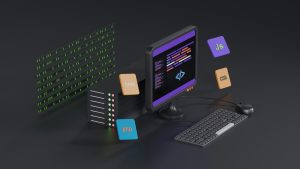
Lovable has become a popular way to ship beautiful web apps without writing every line by hand. But when a Lovable project runs inside an Android WebView, one weak spot appears quickly: offline access. A blank screen or generic error page does not match the polished feel of the rest of the app. A local HTML fallback keeps the experience smooth even when the network drops.
The problem with default offline behavior
WebView loads remote content by default. If the device loses connectivity or the server is unreachable, the WebView can render a system error page or simply stay blank. For a Lovable app that already has a strong visual identity, that default state feels broken.
Why a local HTML fallback matters
A local HTML fallback is a bundled page stored inside the app. When the remote URL cannot load, the WebView shows this local page instead. The page can include your brand style, a short message, and a retry button. The user sees intentional design rather than an error.
WebViewGold as the quick conversion layer
WebViewGold offers a quick and simple solution to convert websites into apps for Android easily. After exporting your Lovable project or publishing it as a URL, you can wrap it in a native Android shell without writing a full app from scratch. The local fallback pattern fits naturally into that setup.
Building the local fallback page
Create a file named fallback.html and place it in your project assets. Keep the markup lean and style it with inline CSS to avoid extra requests. A basic version looks like this:
<!DOCTYPE html>
<html lang="en">
<head>
  <meta charset="utf-8">
  <meta name="viewport" content="width=device-width, initial-scale=1">
  <style>
    body { margin:0; min-height:100vh; display:flex; align-items:center; justify-content:center; background:#0f172a; color:#e2e8f0; font-family:system-ui, sans-serif; text-align:center; padding:24px; }
    .card { max-width:360px; }
    h1 { font-size:1.5rem; margin-bottom:12px; }
    p { opacity:0.8; line-height:1.5; }
    button { margin-top:16px; padding:12px 20px; border:none; border-radius:8px; background:#38bdf8; color:#0f172a; font-weight:600; cursor:pointer; }
  </style>
</head>
<body>
  <div class="card">
    <h1>You are offline</h1>
    <p>The app needs a connection to load the latest content. Reconnect and give it another try.</p>
    <button onclick="location.reload()">Retry</button>
  </div>
</body>
</html>
Wiring the fallback into WebViewGold
Add the fallback.html file to the Android assets folder. In the WebView client callback that handles loading errors, load the local file instead of the remote URL. The pattern works in a custom WebViewClient method for onReceivedError. The retry button reloads the current WebView, which attempts the remote URL again.
Keeping the fallback on brand
Match the fallback page to your Lovable app using the same background color, font stack, and button style. A small amount of inline CSS keeps the page self-contained and fast. The goal is for the offline state to feel like part of the product, not a careless afterthought.
Testing the offline experience
Enable airplane mode on a test device and open the app. The local fallback should appear quickly. Turn the network back on and tap the retry button to confirm the remote content loads again. Repeat the test on a slower connection to make sure the fallback triggers only when needed.
With WebViewGold handling the Android wrapper and a local HTML fallback covering the offline edge case, a Lovable project becomes a reliable app in minutes without deep native development.
You May Also Like
The Android Offline Chameleo ...
November 12, 2026
Airplane Mode Android: Swapp ...
November 11, 2026
Android WebView Fallback Gam ...
November 10, 2026