

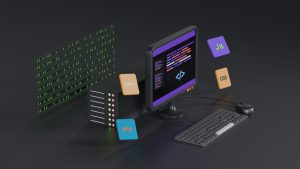
Android WebView apps are a fantastic way to wrap an existing website into a native app experience without rewriting code. But every WebView app shares the same weak point: when the device loses connectivity, the app can show a blank white screen or a generic error page. Dead zones in elevators, basements, rural highways, and crowded venues immediately break the user experience.
Why WebView Apps Fail in Dead Zones
A standard WebView loads a remote URL. If that URL cannot be reached, the WebView has nothing to render. The app does not magically cache the full site structure, and the default error screen looks broken and unprofessional. For businesses relying on their app as a storefront or service portal, this creates a poor first impression.
The Local HTML Fallback Switch Explained
WebViewGold includes a simple local HTML fallback switch for no-code Android app builds. Instead of showing a blank page when the remote website is unreachable, the app can display a locally stored HTML file. This file loads instantly, even with zero network access, because it is bundled inside the APK. The fallback can include your brand, a friendly offline message, contact details, and a retry button.
Activating the Fallback in WebViewGold
To activate the local HTML fallback, open your WebViewGold project configuration. Look for the offline fallback setting in the Android settings panel. Enable the local HTML fallback switch and upload your custom HTML file. No coding is required. After saving and rebuilding the app, the fallback becomes part of the final APK.
What to Put in Your Fallback HTML
The fallback file can be as simple or as rich as you like. Include your logo, a short message such as “You are offline right now,” and a button that reloads the original URL when the connection returns. You can also list a phone number or email address so users can still reach your business. Keep the file lightweight for instant loading.
Testing Your Dead-Zone-Proof App
After building the app, test it by enabling airplane mode or moving to an area with no signal. Open the app and confirm that your local HTML fallback appears instead of a blank screen. Then disable airplane mode and tap the retry button to verify that the remote website loads normally.
WebViewGold makes it quick and simple to convert websites into apps for Android, and the local HTML fallback switch adds an extra layer of reliability. By activating this feature, you keep users engaged even when the network disappears, turning dead zones into branded, informative moments instead of lost opportunities.
You May Also Like
Stay Awake, Android: WebView ...
October 20, 2026
Android WebView Status Bar R ...
October 19, 2026
Offline-First Android: Swapp ...
October 18, 2026