

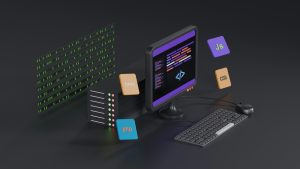
Building an Android app that feels reliable even when the network is not can set your project apart. Users expect content to appear instantly, and a blank screen during a connectivity drop is a fast way to lose trust. An offline-first strategy solves this by serving local content whenever the live version is unavailable. With WebViewGold’s Switch Mode, you can swap between a live URL and a local HTML fallback with minimal effort.
Why Offline-First Matters for Android Apps
Mobile connections are unpredictable. Users move through tunnels, basements, and areas with weak signal, yet they still open apps and expect something useful to load. A local fallback keeps your brand visible and your core message accessible even when the server cannot be reached. It also reduces the perceived loading time because a bundled HTML file can render almost immediately.
Understanding Switch Mode in WebViewGold
WebViewGold offers a fast way to turn any website into an Android app without writing complex native code. Switch Mode is one of its built-in features that lets you define a live URL as the primary source and a local HTML file as the backup. When the live URL fails or when you trigger the switch manually, the app loads the local content instead of showing an error page.
Preparing Local HTML Fallbacks
Start by creating a simple, lightweight HTML file that matches the visual language of your main website. Keep the file small so it loads quickly even on older devices. Include your logo, a short headline, essential links, and a note that the full experience will return once the connection is restored. Store this file inside the app’s assets so it is bundled with the APK and always available.
Implementing the Swap from Live URL to Local File
In WebViewGold’s configuration, set the live website as the main URL and enable Switch Mode. Then point the fallback option to your local HTML file. You can configure the app to detect failed network requests automatically and switch without user action. For more control, you can also trigger the swap from a custom menu or button inside the app. This gives you both automatic recovery and manual access to your offline content.
Testing the Offline Experience
Run the app with airplane mode enabled to see exactly what users encounter when the connection drops. Check that images, text, and buttons render correctly from the local file. Verify that returning to the live URL works smoothly once the network is back. Testing on different Android versions is important because file handling and WebView behavior can vary slightly between devices.
Keeping the User Experience Smooth
A good fallback is more than a static message. Use the local HTML to guide users toward actions that do not require a live connection, such as viewing cached information, checking business hours, or contacting you through a phone number. Match the fallback design to your brand so the switch feels intentional rather than broken. A soft transition and clear copy help maintain confidence during offline moments.
Final Thoughts
Offline-first Android apps are no longer a luxury. With local HTML fallbacks and a simple switch mechanism, you can keep your app useful in every situation. WebViewGold makes this process quick and simple by giving you a ready-made way to convert websites into apps for Android easily while handling the live-to-local swap without deep technical work. Set up your fallback today and give users a dependable experience no matter where they are.
You May Also Like
Lovable Goes Offline on Andr ...
October 18, 2026
No-Code Android Offline Mode ...
October 17, 2026
Lovable Meets Airplane Mode: ...
October 16, 2026